


SpeechTrack for Mac · CLI use case
Regenerate a product-demo voiceover with your cloned voice
Keep the script and timing in a CSV. Change a line, run one command, and get a fresh narration track in your own voice.
When a product demo changes, its narration needs to follow. SpeechTrack's command-line interface lets you rebuild that audio from a text file using a voice already saved on your Mac. Voice generation stays on-device, and export runs without opening an app window.
1. Save your voice in the Mac app
Install SpeechTrack on a supported Apple-silicon Mac. Open Voice Library, choose New Voice, and record or import 5–15 seconds of clear English speech. Give the voice a name such as My Voice and save it. A voice saved in Voice Studio also works.
Use your own voice or one you have explicit, informed permission to clone. Voice setup happens in the app; the CLI uses profiles saved on this Mac and has no voice-enrollment command.
2. Connect Terminal to your saved voice
Paste this function into Terminal. It calls the executable bundled with the Mac app; adjust the path if you installed the app somewhere else. You can also put the function in a shell script.
speechtrack() {
  "/Applications/SpeechTrackMac.app/Contents/MacOS/SpeechTrackMac" --cli "$@"
}

speechtrack help
speechtrack voices
speechtrack voices --json
The voice list includes profiles from Voice Library and Voice Studio. Select a unique name, or copy an exact library:UUID or studio:UUID selector from the list. If the same voice name appears twice, use its scoped selector.
VOICE="My Voice"Replace My Voice with your saved voice's name or selector. You can omit --voice only when exactly one cloned voice is available across both stores.
3. Check how the voice sounds
Read the declaration printed by speechtrack help before generating speech. Every say and render command requires --acknowledge-voice-use: it confirms informed speaker permission for the intended use, no fraud or deceptive impersonation, disclosure of AI-generated audio, and respect for withdrawn permission.
speechtrack say --acknowledge-voice-use --voice "$VOICE" \
  "Welcome to the product demo."
say plays through the Mac's audio output. To save a copy while also playing it, use:
speechtrack say --acknowledge-voice-use --voice "$VOICE" \
  --output - --format wav "Welcome to the product demo." > greeting.wav
4. Time the narration to the demo
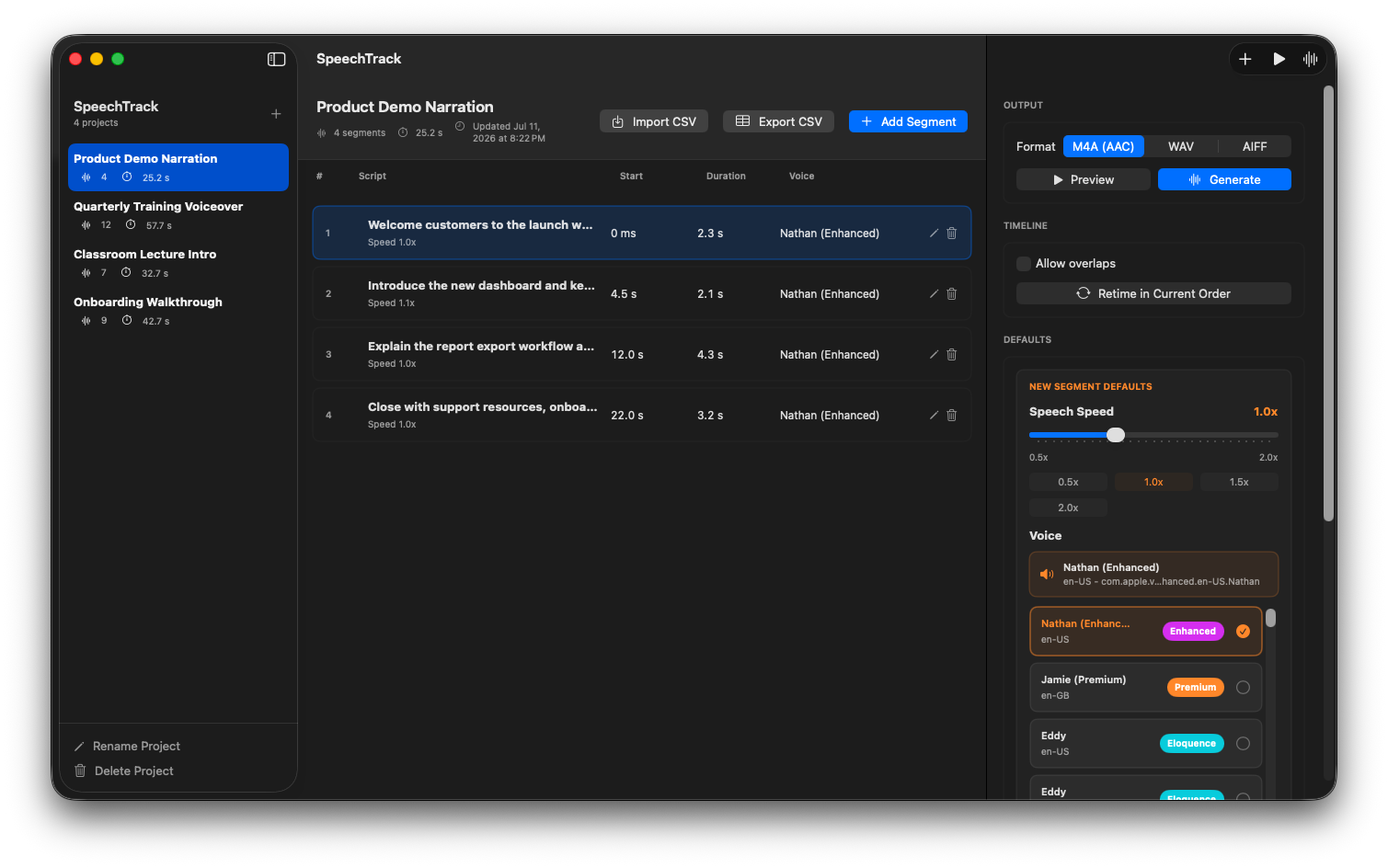
Download the sample CSV and save it as demo.csv in your working directory, or create that file with the command below. The three lines introduce the demo, open a project, and describe exporting a track, starting at 0, 12, and 24 seconds.
cat > demo.csv <<'CSV'
text_readable,start_time_readable,voice_id_internal,rate_readable,pitch_readable,volume_readable,header_gap_readable,footer_gap_readable
"Welcome to the product demo.",00:00:00.000,,0.5,1,1,00:00:00.000,00:00:00.500
"Choose a project to open your workspace.",00:00:12.000,,0.5,1,1,00:00:00.000,00:00:00.500
"Export your finished track when you are ready.",00:00:24.000,,0.5,1,1,00:00:00.000,00:00:02.000
CSV
Match the start times to actions in your screen recording, then edit the text whenever the demo changes. Times and gaps use HH:MM:SS.mmm. The final row adds two seconds of silence after its speech.
Keep the first six columns, including voice_id_internal. Its cells can be empty because the CLI applies your selected cloned voice to every row. This also overrides any Apple or cloned voices in a CSV exported from the app. The two gap columns are optional and default to zero; each row's speed, pitch, volume, and gaps are retained.
5. Export, listen, and repeat
From the directory containing demo.csv, generate a single M4A track:
speechtrack render --acknowledge-voice-use --voice "$VOICE" \
  --input - --output - --format m4a < demo.csv > demo.m4a
afplay demo.m4a
render exports without playback; afplay is macOS's player. Import demo.m4a into your video editor and align its beginning with the screen recording. Label the narration as AI-generated.
After changing the CSV, run the render command again. Use a new filename to keep the previous take:
speechtrack render --acknowledge-voice-use --voice "$VOICE" \
  --input - --output - --format m4a < demo.csv > demo-v2.m4a
Listen after every revision: longer speech can push later segments beyond their requested times. By default, colliding speech and gaps move later to avoid overlaps. Shorten the text or leave more space to keep narration aligned with the demo. --allow-overlaps keeps the requested start times and mixes overlapping audio.
Mac CLI commands and options
Run the app executable with --cli as its first argument. The function above adds it for you. Use speechtrack help, speechtrack --help, or speechtrack -h to show usage; help replaces the command.
speechtrack voices [--json]
speechtrack say --acknowledge-voice-use [--voice SELECTOR] [--output PATH|-] [--format m4a|wav|aiff] PHRASE
speechtrack render --acknowledge-voice-use [--voice SELECTOR] [--input PATH|-] --output PATH|- [--format m4a|wav|aiff] [--allow-overlaps]| Option | Commands | What it does |
|---|---|---|
--json | voices | List cloned voices as JSON objects with selector, scope, and name. |
--acknowledge-voice-use | say, render | Required for every generation. Confirms agreement to the voice-use declaration shown by help. |
--voice SELECTOR | say, render | Use a unique name or a scoped UUID. Required unless exactly one cloned voice is available. Matches are case-insensitive. |
--input PATH|- | render | Read UTF-8 CSV. Defaults to stdin (-). |
--output PATH|- | say, render | Write audio to a path or stdout (-). Required for render; optional for say, which still plays the audio. |
--format m4a|wav|aiff | say, render | Required for stdout. For path output, infer from the extension or choose a matching format. With neither an extension nor a format, say defaults to WAV and render to M4A. MP3 is unsupported. |
--allow-overlaps | render | Keep requested start times and mix overlapping segments instead of shifting them later. |
File access, free limits, and common fixes
Use shell redirection for files. The Mac app's sandbox may reject arbitrary file paths. With --input -, --output -, and shell redirection, your shell opens the CSV and destination file. Always set --format when writing to stdout, and keep stderr separate: 2>&1 would mix error messages into the audio. Shell > replaces an existing destination file.
Free limits differ by command. say shares Voice Studio's allowance of 30 seconds of generated speech per day on this device. render allows up to 30 seconds of estimated speech per output; silence does not count. SpeechTrack Pro Lifetime removes both speech limits. Purchase or restore it in the Mac app with the Apple Account that owns it.
- No voices or an ambiguous name? Save a voice in the Mac app, run
speechtrack voices --json, and copy the exact selector. - Executable not found? Check where the app is installed and update the path in the function.
- CSV validation failed? Check the reported rows, required columns, numeric values, and time fields. Invalid rows stop the export.
- Need to stop? Press Ctrl-C during generation or playback.
For scripts, exit status 0 means success; 64 is a usage error, 65 invalid CSV data, 66 a missing or ambiguous voice, 70 another runtime error, 74 a file access error, 77 a free speech limit, and 130 cancellation. Help, errors, and terminal progress go to stderr; voice listings and audio requested with --output - go to stdout.
Explore SpeechTrack: Live Voice Clone or watch the voice-cloning and presentation tutorial.